
Spatial Security Design
From site plan to client report, in one app.
AEVOR is a design app for security installers. Draw the plan, place security devices, check radio coverage and hand over a report you are proud of.
Why AEVOR
Less redrawing. Fewer guesses. A report you are glad to send.
The slow parts of a job are the same every time. AEVOR is built around them.
-
Draw the plan once
Devices, levels and the report all come from the same plan, so a change is made in one place.
-
Check coverage early
See where a radio link is estimated to be suitable, marginal or weak on the plan, before you drill a hole.
-
Report from the same plan
Pick what goes in and export a PDF from the plan you already drew. No copying between apps.
-
Look professional in the room
Your logo, your details and a clean layout. A client sees a job that was thought through.
How it works
Site to report in four steps
One plan carries you from the site visit to the report in the client’s hands.
-
01 Capture
Start from what is there
Draw walls and rooms to scale, scan a room where your device has LiDAR, or trace over a plan you already have.
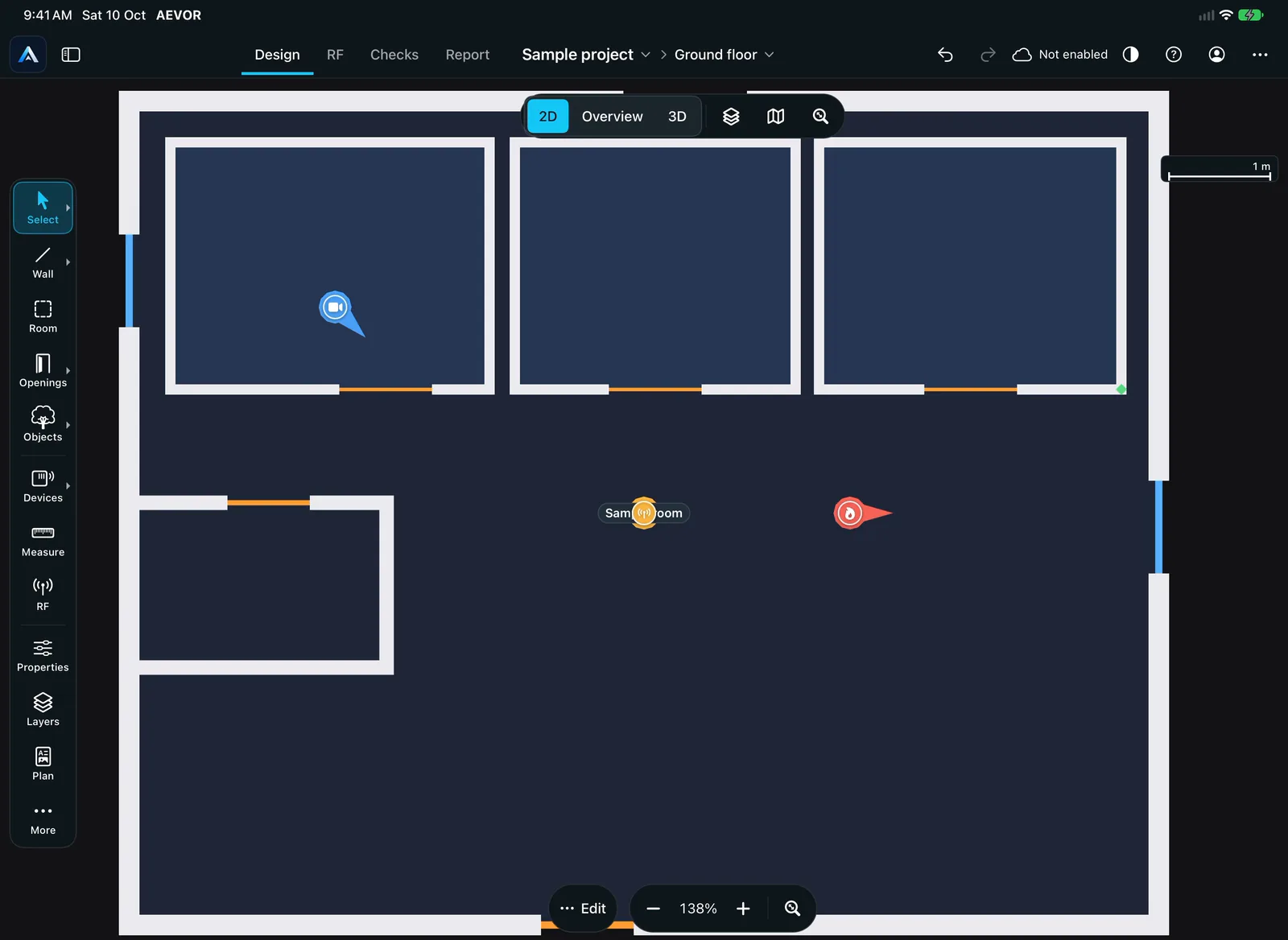
Drawing walls and rooms on a sample plan. A silent loop, sequences shortened. In the loop, walls are drawn with the Wall tool, three rooms are added with the Room tool, then doors and a window are placed from the Openings menu. -
02 Design
Place devices where they belong
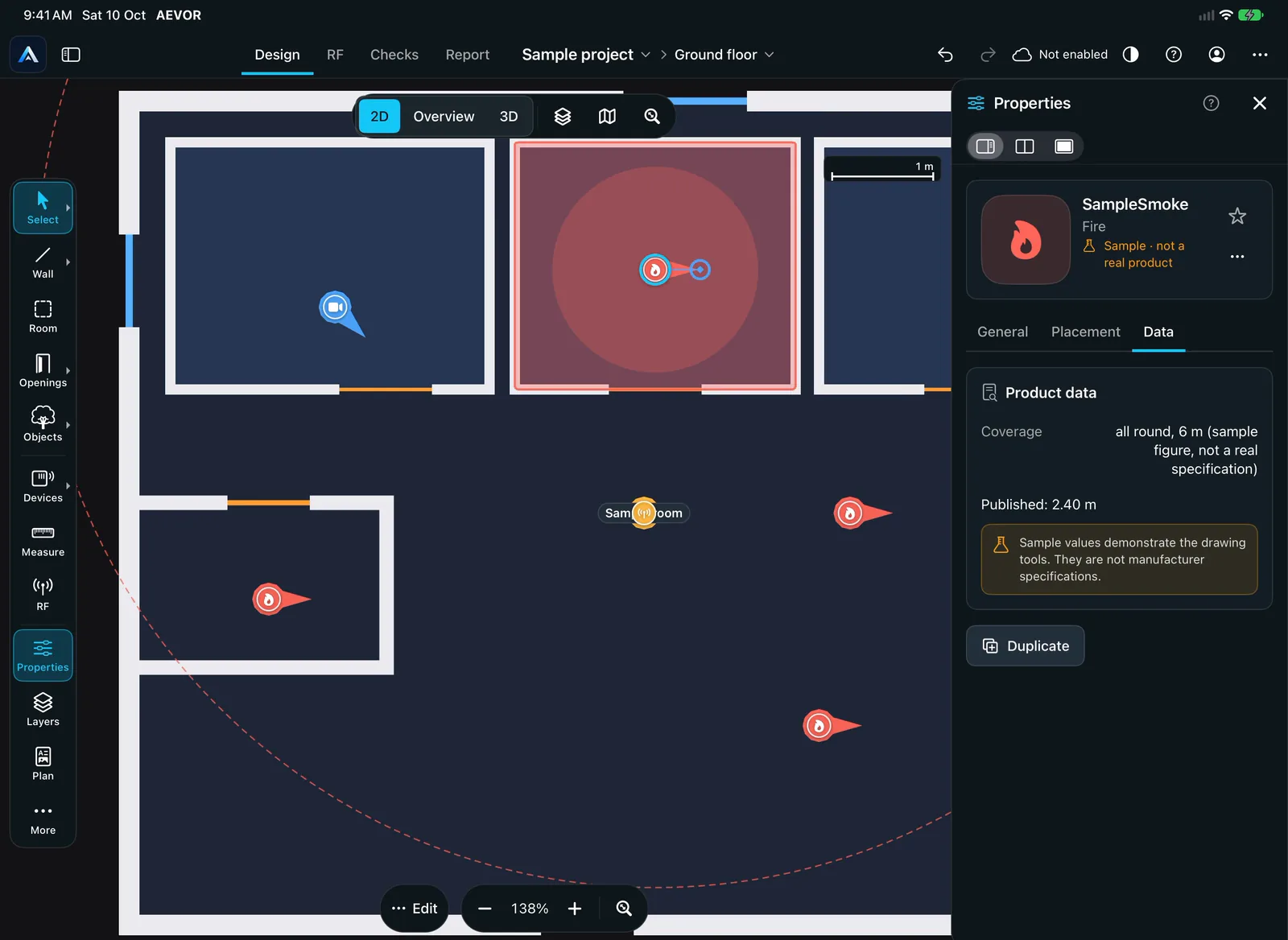
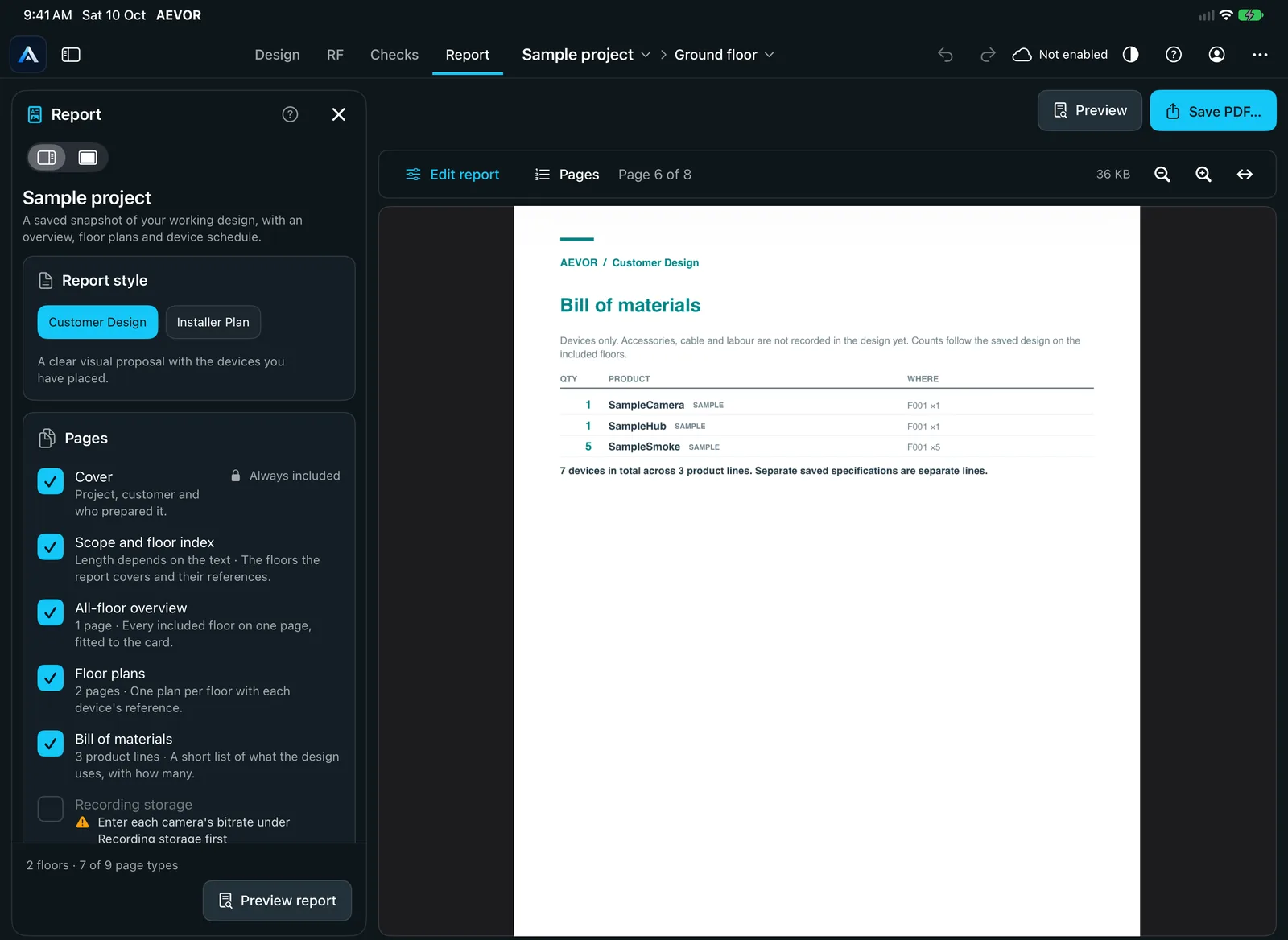
Drop security devices, cameras and hubs onto the plan, link them to a hub and add levels as the building needs them.
Placing sample devices on a sample plan. A silent loop, sequences shortened. In the loop, the Devices menu opens, a sample smoke detector is chosen and placed in three spots on the plan, and its details card opens beside the plan. The devices are marked as samples, not real products. -
03 Check
See the radio picture before you drill
The RF planner estimates coverage for every device on the plan and flags the weak ones.
Planning estimates, not measured signal. Always confirm on site.
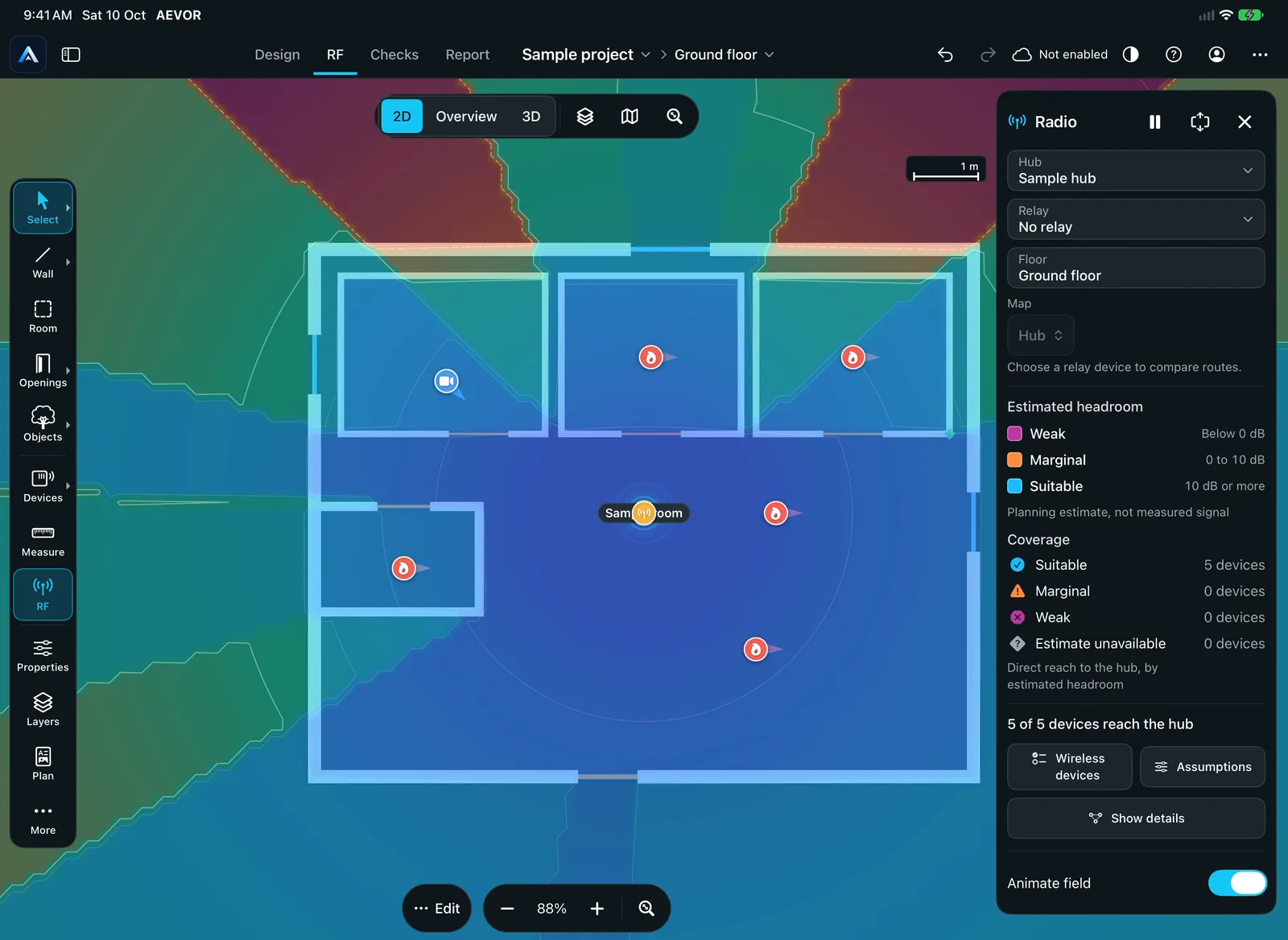
The RF planner on a sample plan with sample devices. Planning estimates, not measured signal. A silent loop, sequences shortened. In the loop, a sample hub is chosen in the Radio card and a coloured planning-estimate map fills in over the floor. The card shows the Weak, Marginal and Suitable legend with device counts. -
04 Report
Hand over a report that looks the part
Choose what goes in, add your branding and export a PDF for the client.
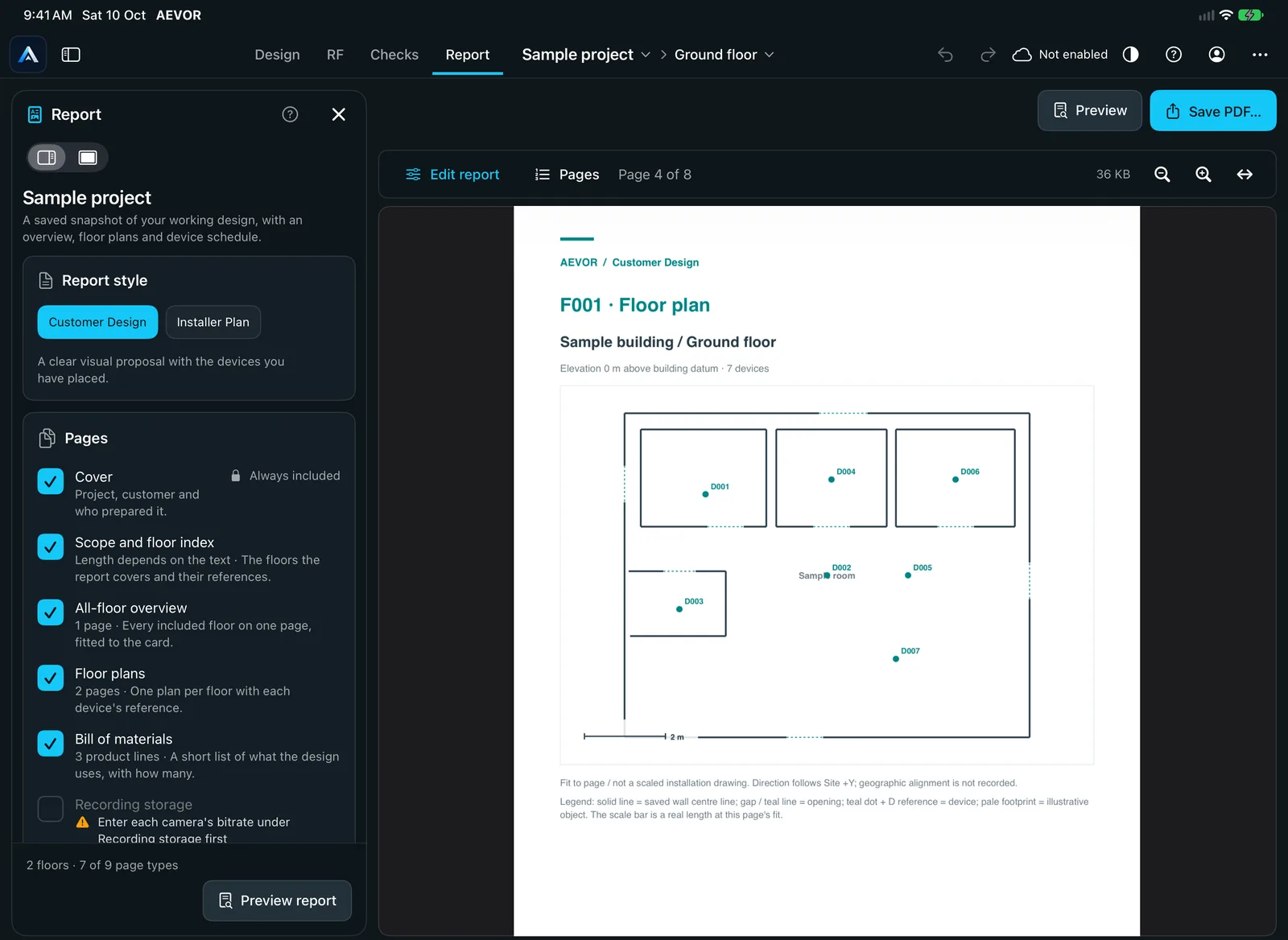
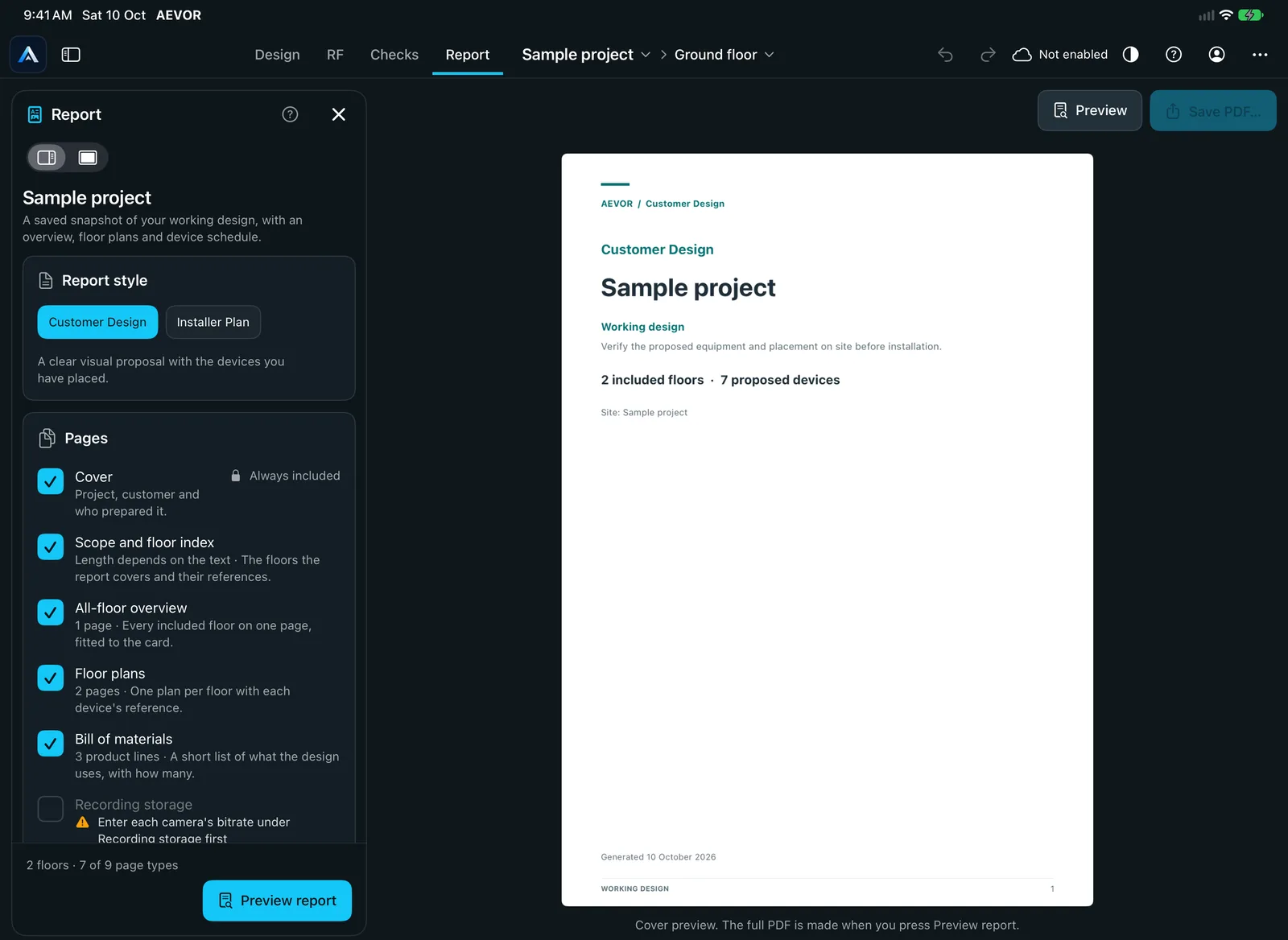
The report screen for a sample project.
RF planner
Plan the radio picture before you drill
Place a hub, add devices and AEVOR estimates the radio headroom across your plan. Weak, marginal and suitable areas appear as colour, each with its own shape and word, so nothing depends on colour alone.
Planning estimates, not measured signal. Always confirm on site.
A heat map on your own plan
Coverage is drawn over the plan you made, with contours that show estimated headroom.
Walls count
Obstructions use assumed construction losses that you can adjust, so you can allow more for a concrete wall than for glass.
A reserve you choose
Set a planning reserve, so the estimate keeps some headroom in hand.
A plain result per device
Each device is rated against its hub as Suitable, Marginal or Weak, in words as well as colour.
3D and levels
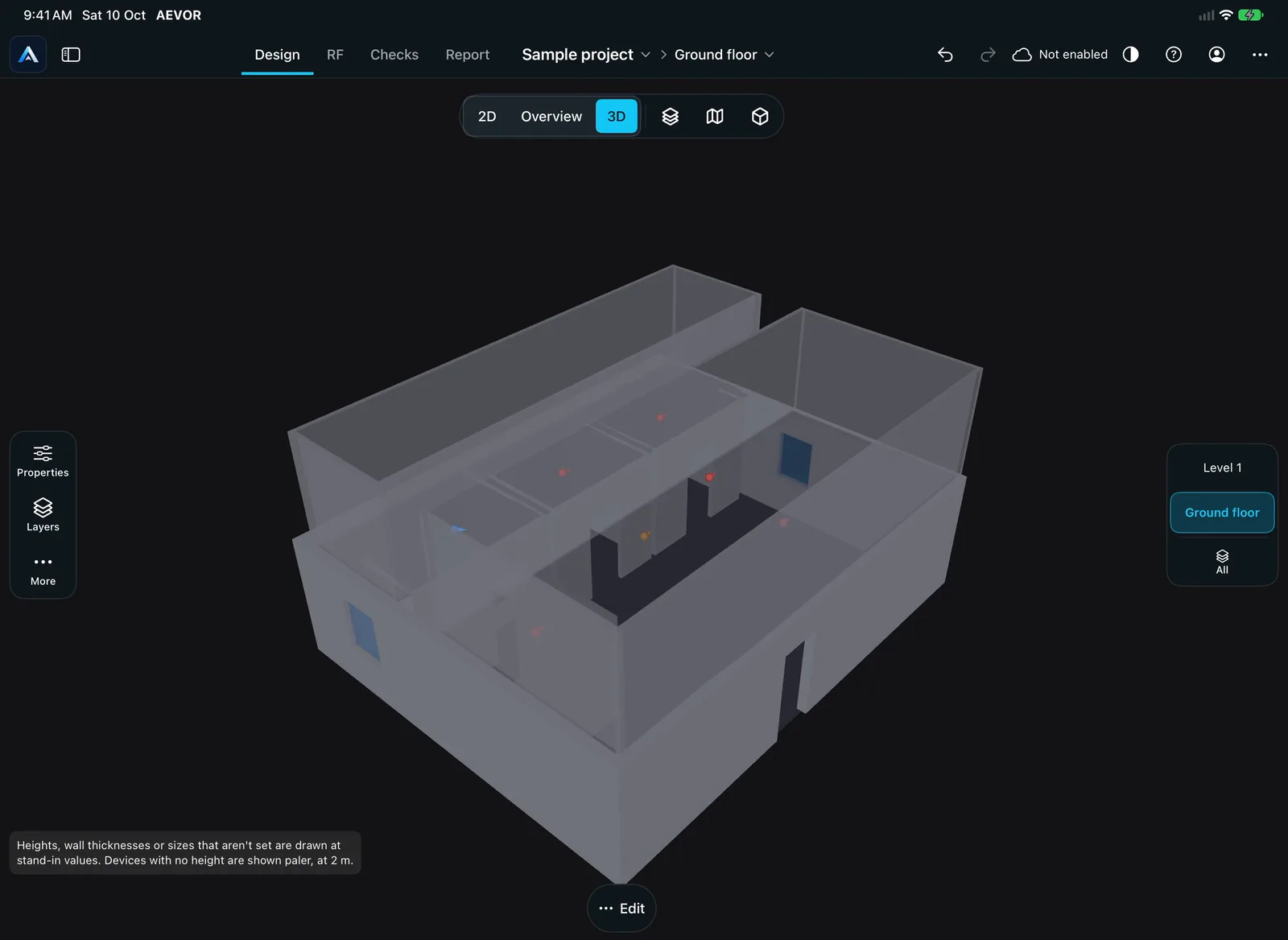
Every level, one model
Add levels as the building needs them, move between them with a tap, then look at the whole job in 3D with your devices in place.
Reports
A report that looks like you meant it
Choose what goes in, add your company details and logo, and export a PDF the client can read on any screen.
- Cover page and site overview
- Floor plans with every device marked
- Bill of materials and equipment schedule, with your own notes
- Radio analysis if you add it, with its assumptions and limits, stated as planning estimates
- Your company name and logo on every page, and your contact details on the cover
Your own devices
Add the kit you actually install
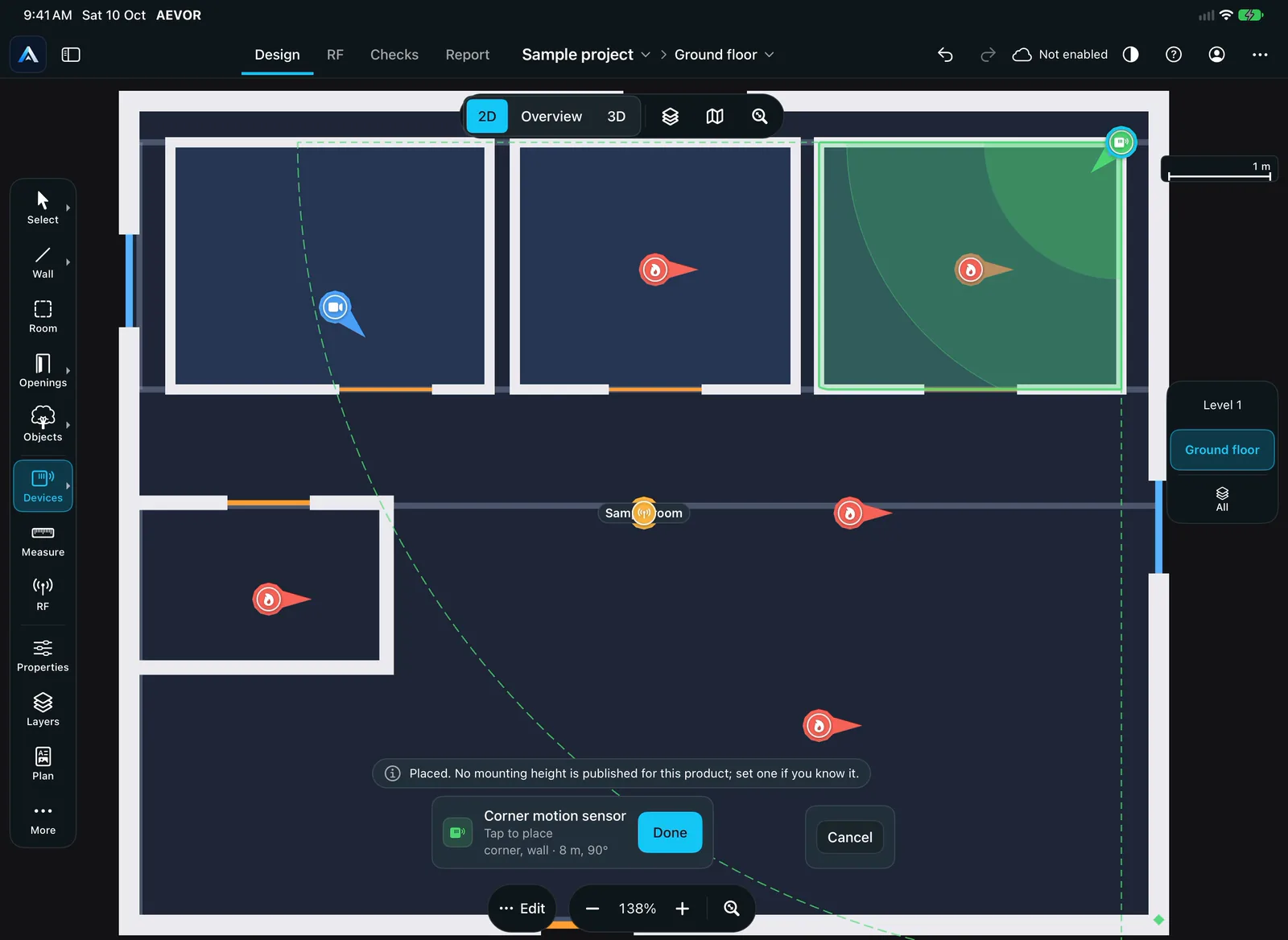
Create a device with your own name, specs and photos, then place it like any other. Bring in product data and pictures from a file you already have.
AEVOR does not bundle a product database. The data and pictures are yours, imported from your own file.
Private by design
Your projects stay on your device
Client plans are sensitive. AEVOR keeps them with you.
Your plans are not sent to us
AEVOR has no server of ours for your plans to go to, and no analytics, tracking or advertising. If you message us, or send beta feedback through TestFlight, we see what you send.
Sync is your choice
Turn on private iCloud sync to see projects on your other devices. They go to your own private iCloud, not to us.
This website follows the same rule
No cookies, no trackers, no outside fonts or code. Everything here is served from aevor.app.
Read the privacy page. A few optional features, such as ground heights, ask Apple or government services, and the page names each one.
Join the beta
AEVOR is in beta on TestFlight for iPhone, iPad and Mac. Tell us what you install and we will reply with how to get it. Nothing is charged during the beta.
This opens your email app with a message to support@aevor.app. Nothing is sent until you press send.
Questions
What is AEVOR?
A design app for security installers. You draw the site plan, place security devices, check radio coverage with the RF planner and produce a PDF report for the client.
Which devices does it run on?
iPhone, iPad and Mac. Scanning a room needs a device with LiDAR. Everything else works without it.
Does it include a product database?
No. AEVOR does not bundle product data or pictures. You import them from a file you already have, and you can add your own devices and photos. The devices in our screens are samples so you can see the planner at work.
Is the radio coverage measured?
No. The RF planner gives planning estimates, not measured signal, and we do not quote accuracy figures. Use it to plan and compare layouts, then confirm on site.
Is my data private?
Your projects stay on your device. We run no server for them and use no analytics or tracking. The privacy page lists every outside service the app can use, and when.
Does it cost anything?
Nothing is charged during the beta.
How do I join the beta?
Press Join the beta. It opens an email to us. Tell us what you install and we will reply with how to get AEVOR on TestFlight. Need help? The support page has the details.